Backgrounds
The Backgrounds feature allows you to customize the visual appearance of your launcher. You can upload multiple images and choose which one is currently displayed to your players.
Managing Backgrounds
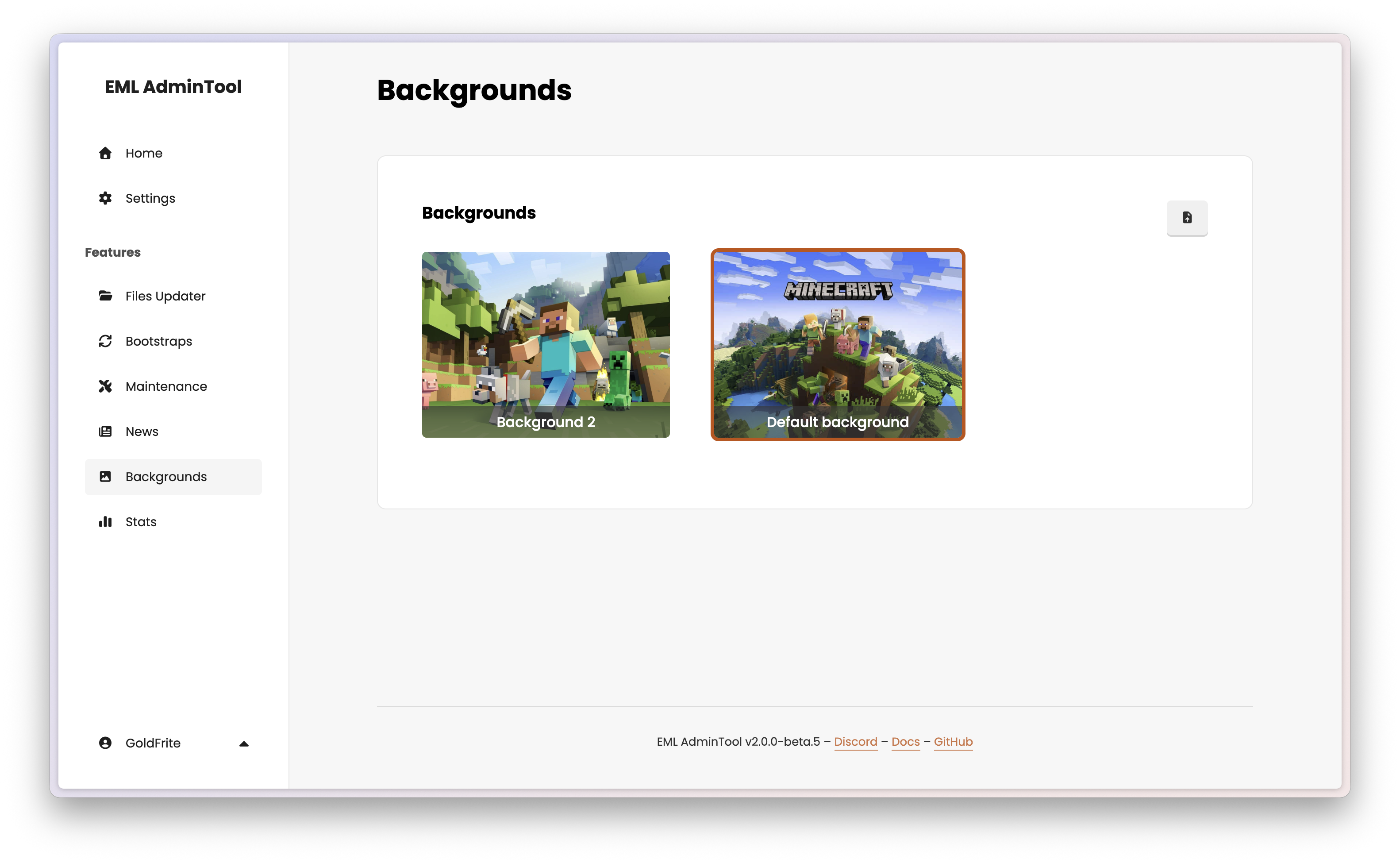
The main page displays a gallery of all your uploaded backgrounds. The currently active background is highlighted with a colored border.
Uploading a Background
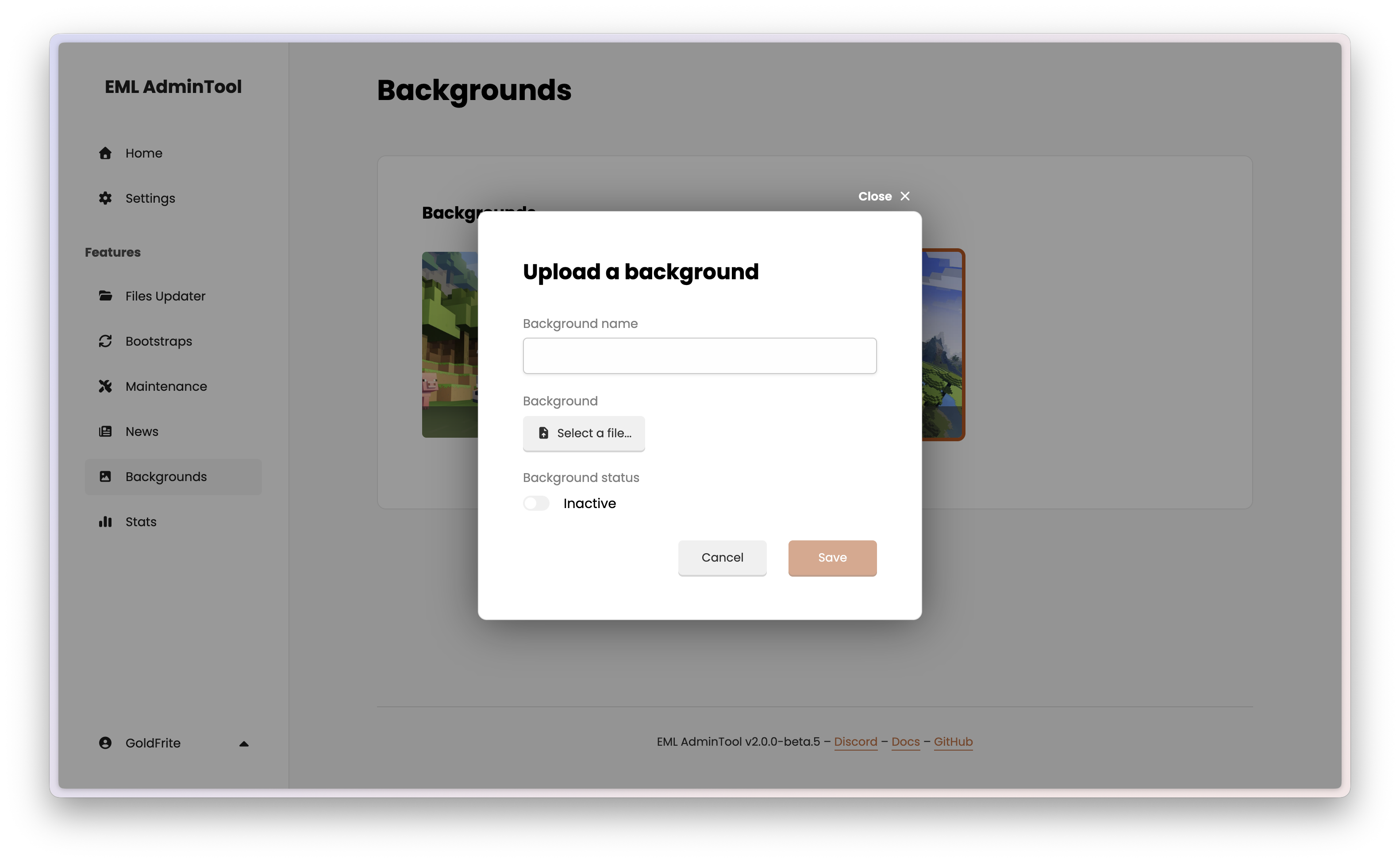
To add a new image to your collection, hover over the section and click the upload button ().
Name: Enter a descriptive name for your background (e.g., “Christmas Event”, “Default”).
File: Click “Select a file…” to choose an image from your computer.
Status: You can choose to set it as active immediately (this will disable the current one).
Activating a Background
You can have multiple backgrounds stored, but only one can be active at a time.
To switch the active background:
- Hover over the background you want to use.
- Click the “Enable” button.
- The previously active background will automatically be disabled.
Note
The system requires at least one active background to function correctly. You cannot disable the currently active background without enabling another one first.
Editing and deleting
To edit: Hover over a background card and click the edit button (). You can change its name and status (active/inactive).
To delete: Hover over a background card and click the delete button ().
Warning
You typically cannot delete the background that is currently active. You must activate another one first.