User settings
The Account settings page allows every user (administrators and standard users) to manage their personal profile, update their credentials, and review their assigned permissions.
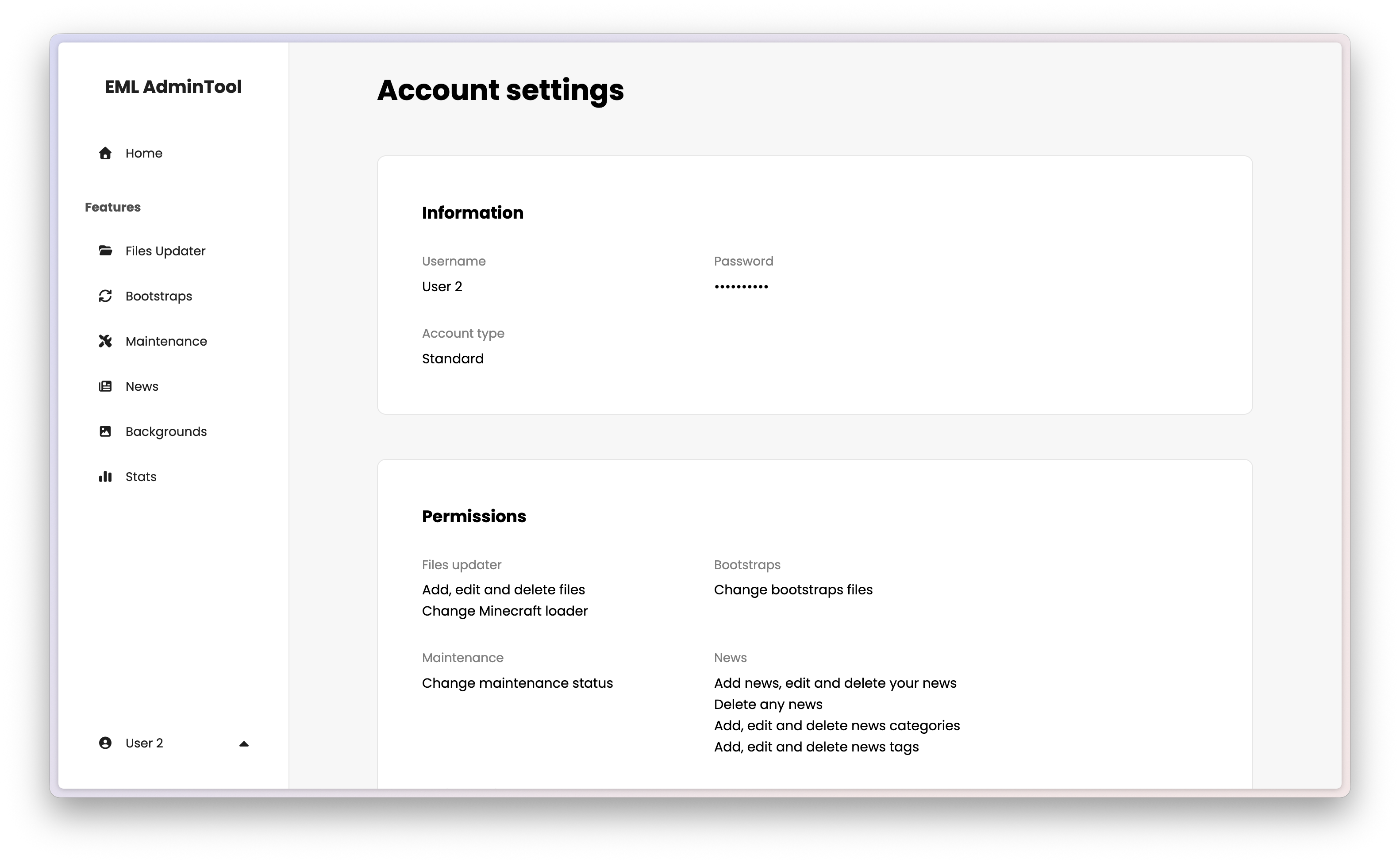
Account information
The top section displays your current profile details:
- Username: Your display name on the EML AdminTool.
- Password: Hidden for security reasons.
- Account type: Indicates if you are the Administrator or a Standard user.
Editing your profile
To modify your information, hover over the section and click on the “Edit” button ().
Username: You can change your username here.
Warning
For the administrator: If you are the administrator, changing your username will also change the global name of the EML AdminTool. These two values are linked.
Password: To change your password, enter the new password in both the “New password” and “Confirm password” fields.
Tip
If you only want to change your username but keep your current password, simply leave the password fields blank.
Click “Save” to apply changes. You may be asked to log in again if you changed your credentials.
Permissions
This section is read-only. It displays the list of features you are allowed to access and manage.
These permissions are assigned by the administrator when your account is approved. If you need access to a specific feature (like Files Updater or News management) but do not see it listed here, you must contact the administrator to update your rights.
Danger zone
Delete account: This button allows you to permanently delete your own account.
Caution
This action is irreversible. You will lose access to the EML AdminTool immediately. If you wish to return, you will need to register again and wait for administrator approval.
Note
The main Administrator cannot delete their own account from here. To reset the main account, a full factory reset of the EML AdminTool is required (see General settings).