Quick Start with EML Lib
Important
If you use the pre-configured template, you can skip this section and go directly to Frontend architecture.
Let’s verify that everything works by creating a minimal script that launches Minecraft. We won’t build a user interface (HTML/CSS) yet; we just want to see the game start and the logs appear in the terminal.
First code
Create a file named main.js (or main.ts if using TypeScript) inside the electron/ folder. Paste the following code:
import { app, BrowserWindow } from 'electron'
import EMLLib from 'eml-lib'
import path from 'node:path'

function createWindow() {
  const win = new BrowserWindow({
    width: 800,
    height: 600,
    title: "My Launcher",
    webPreferences: {
      nodeIntegration: true,
      contextIsolation: false // For testing purposes only
    }
  });

  // Load Vite dev server URL in development
  if (process.env.VITE_DEV_SERVER_URL) {
    win.loadURL(process.env.VITE_DEV_SERVER_URL)
  } else {
    win.loadFile(path.join(__dirname, '../dist/index.html'))
  }
}

app.whenReady().then(async () => {
  createWindow()

  console.log("Starting Minecraft via EML...")

  // 1. Initialize the Launcher
  const launcher = new EMLLib.Launcher({
    url: 'https://at.emlproject.pages.dev',               // Your EML AdminTool URL
    serverId: 'my-server',                                // Your server ID
    account: new EMLLib.CrackAuth().auth('TestAccount')   // A test cracked account
  })

  // 2. Attach listeners
  launcher.on('launch_compute_download', () => console.log('Computing download...'))
  launcher.on('launch_download', (download) => console.log(`Downloading ${download.total.amount} files (${download.total.size} B).`))
  launcher.on('launch_install_loader', (loader) => console.log(`Installing loader ${loader.type} ${loader.loaderVersion}...`))
  launcher.on('launch_extract_natives', () => console.log('Extracting natives...'))
  launcher.on('launch_copy_assets', () => console.log('Copying assets...'))
  launcher.on('launch_patch_loader', () => console.log('Patching loader...'))
  launcher.on('launch_check_java', () => console.log('Checking Java...'))
  launcher.on('java_info', (info) => console.log(`Using Java ${info.version} ${info.arch}`))
  launcher.on('launch_clean', () => console.log('\nCleaning game directory...'))
  launcher.on('launch_launch', (info) => console.log(`Launching Minecraft ${info.version}...`))
  launcher.on('launch_data', (message) => console.log(message))
  launcher.on('launch_close', (code) => console.log(`Closed with code ${code}.`))

  try {
    await launcher.launch()
  } catch (err) {
    console.error('Error:', err)
  }
})

app.on('window-all-closed', () => {
  if (process.platform !== 'darwin') app.quit();
})
Run the Launcher
Go back to your terminal and run:
npm run devWhat should happen:
- Vite will start the development server.
- An Electron window opens (displaying the default Vite app).
- Look at your terminal. You should see EML downloading the Minecraft assets, libraries, and jar files.
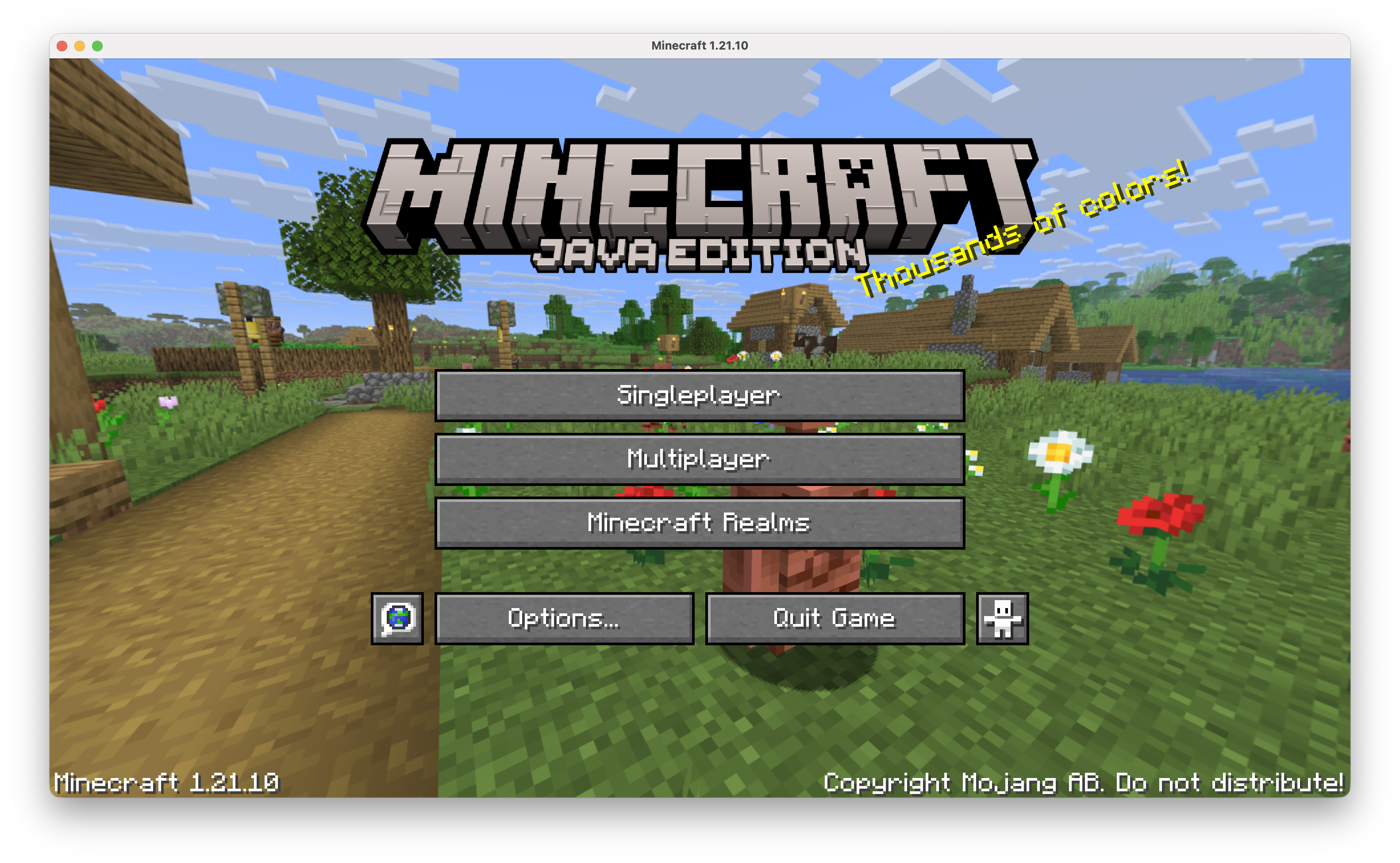
- Once the download is complete, the Minecraft window should open automatically.
Congratulations! Your development environment is ready. You have a working Minecraft engine running inside Electron with Hot Reloading enabled.