News
The News feature allows you to communicate directly with your players. Articles published here will appear on the launcher’s home page, allowing you to share changelogs, server events, or maintenance announcements.
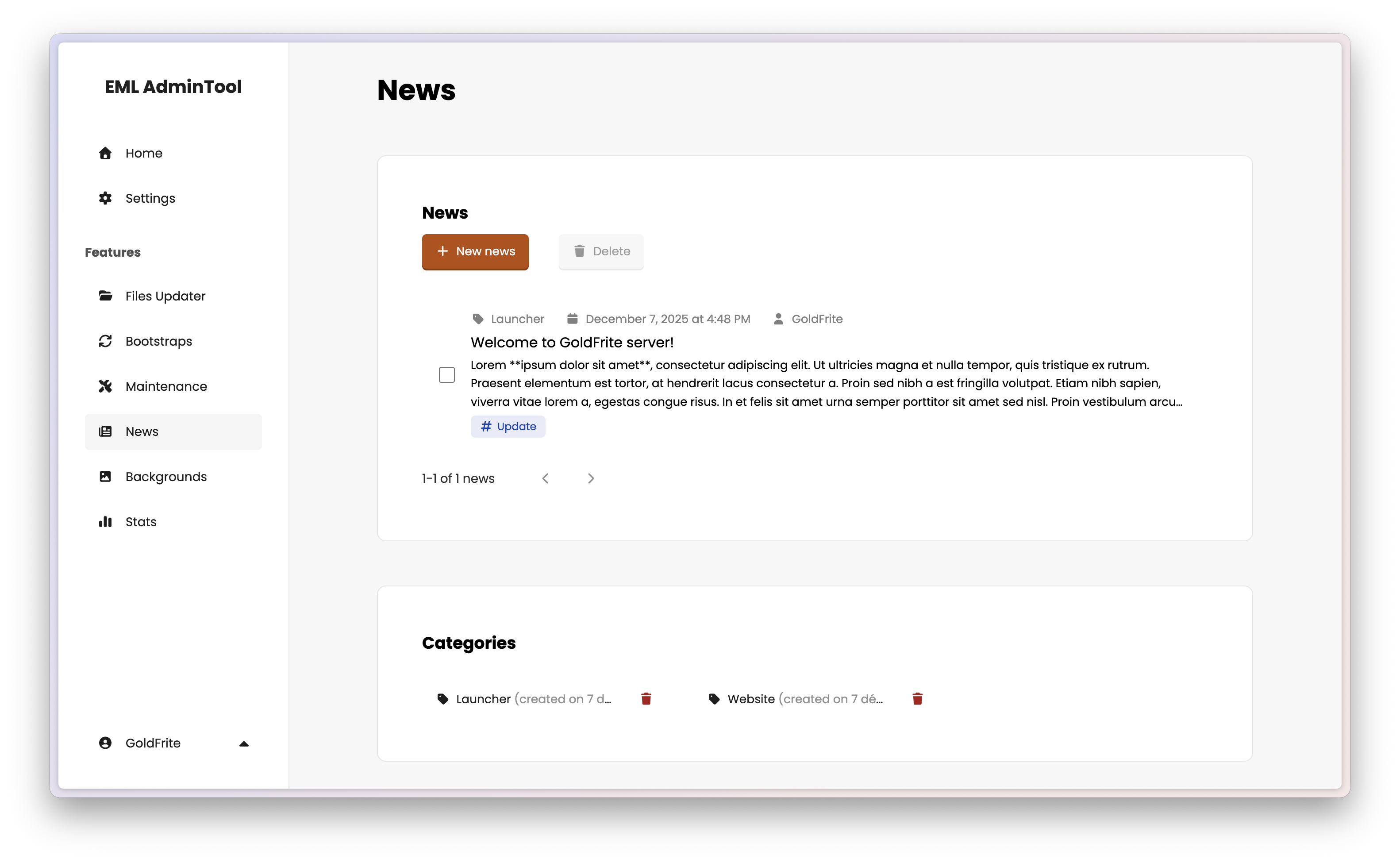
Managing news
The main page displays a list of all published articles.
- Create: Click the “New news” button to open the editor.
- Edit: Simply click on an existing news card to open the editor and modify its content (if you are the author of the news).
- Delete: Select the news items you want to remove using the checkboxes on the left, then click the “Delete” button at the top of the list (if you have the necessary permissions or if you are the author of the news).
Note
If you are not allowed to edit an article, clicking on it will open a read-only preview modal instead of the editor.
The editor
The editor is divided into two main areas: the content on the left and the image manager on the right.
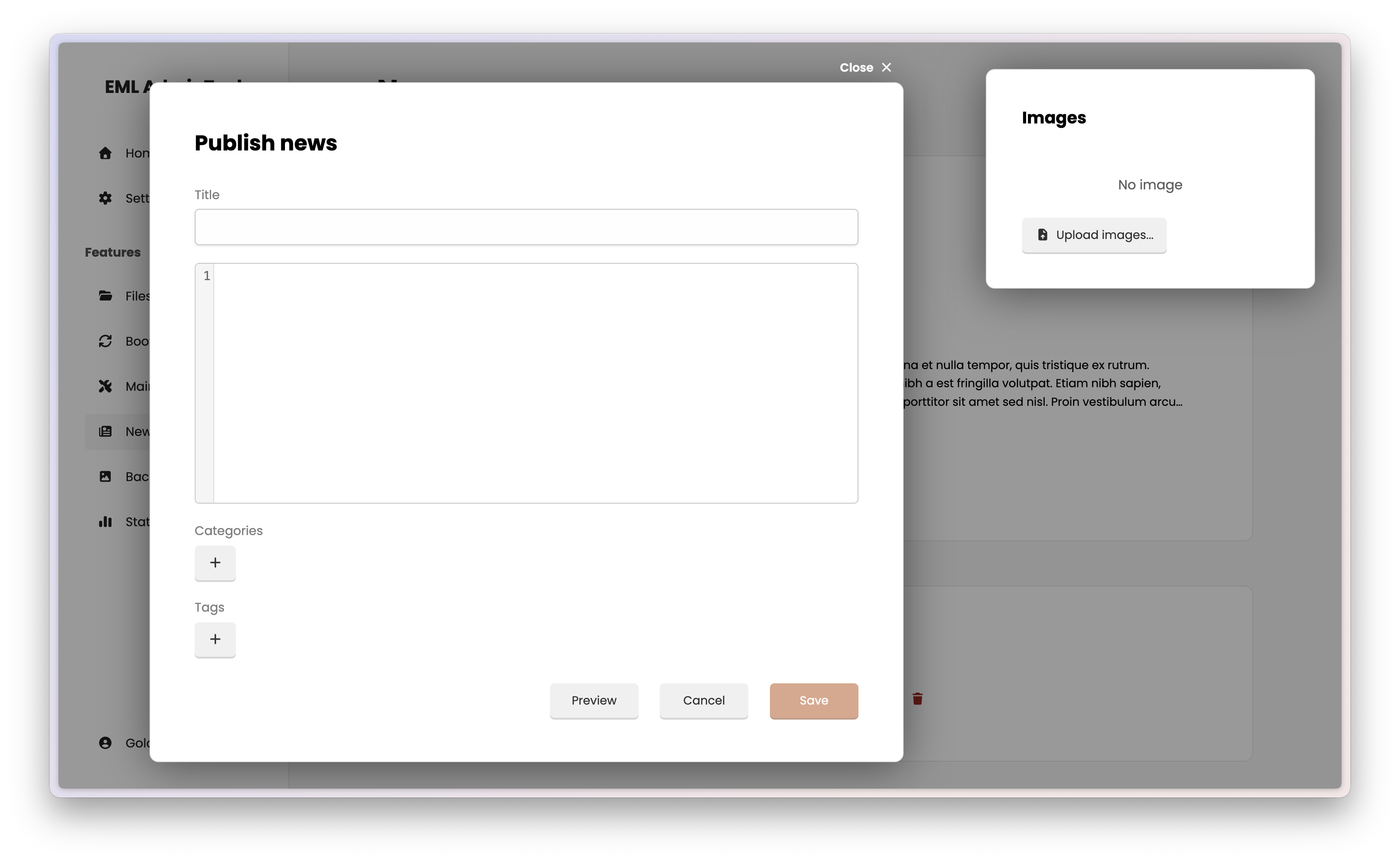
Writing and editing content
Title: The headline of your article.
Content: The body of your article. This area supports Markdown syntax. You can use standard formatting like
**bold**,_italic_, lists, links, … For a full guide on Markdown, refer to this resource.Categories & Tags: Click the ”+” button under “Categories” or “Tags” to assign them to your article.
Tip
When you write or edit an article, you can preview your article by clicking the “Preview” button at the bottom of the modal.
Managing images
The EML AdminTool includes a built-in image host for your news. The workflow is manual to give you full control over where images appear in your text.
To add an image:
- Click the “Upload images…” button on the right panel and select your file.
- Once uploaded, hover over the image card in the right panel.
- Click the copy button () that appears. This copies the Markdown code for the image (e.g.,
). - Paste this code into the “Content” text area on the left where you want the image to appear.
To delete an image:
Hover over the image in the right panel and click the delete button ().
Warning
Deleting an image from the right panel does NOT remove the Markdown link from your text content.
If you delete an image but leave the code (e.g., ) in the text, players will see a broken image icon. Remember to remove the text link manually when deleting an image.
Categories and Tags
At the bottom of the main News page, you can see an overview of all active Categories and Tags.
- Usage: Categories are generally used for broad topics (e.g., “Launcher”, “Website”, “Game”), while Tags are used for specifics (e.g., “#Update”, “#Bug”, “#Event”).
- Creation: To add a new category or tag, hover over the respective section and click the ”+” button. Enter the name and confirm (tags also support a color: choose a dark color to ensure readability).
- Editing: You can rename a category or a tag by clicking the tag/category name itself.
- Deletion: You can delete a category or a tag by clicking the red trash icon () next to its name.
Note
Deleting a category or tag removes it from all news articles that were using it, but it does not delete the articles themselves.