Maintenance
The Maintenance feature allows you to temporarily block access to the launcher. This is an essential safety tool when you are updating modpacks, fixing critical bugs, or performing server maintenance.
When maintenance is active, players will see a specific screen on their launcher preventing them from launching the game, displaying the reason and the estimated duration of the downtime.
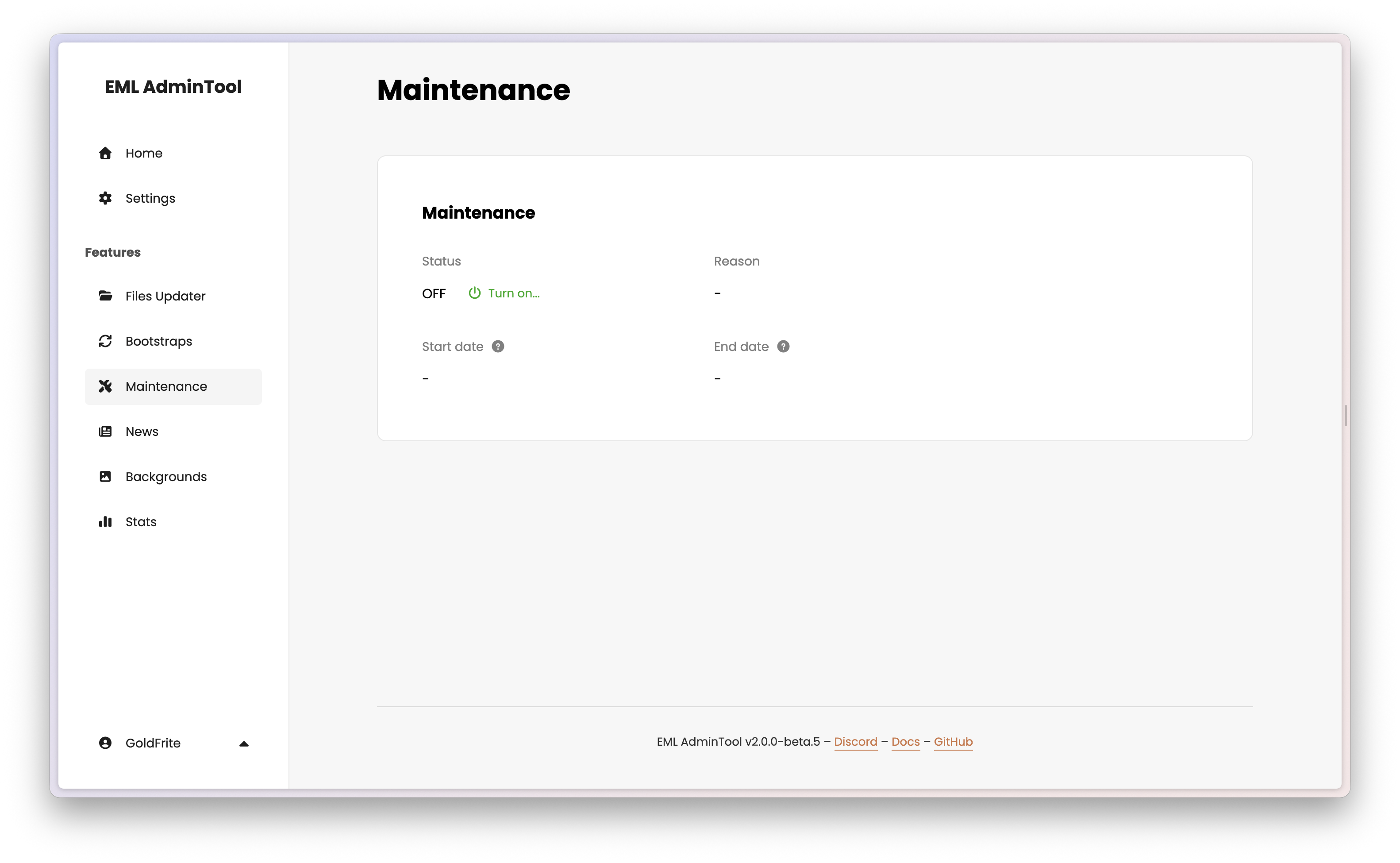
Managing Maintenance
To change the maintenance status, simply click on the “Turn on…” (or “Turn off…”) button, or open the edit page via the edit button ().
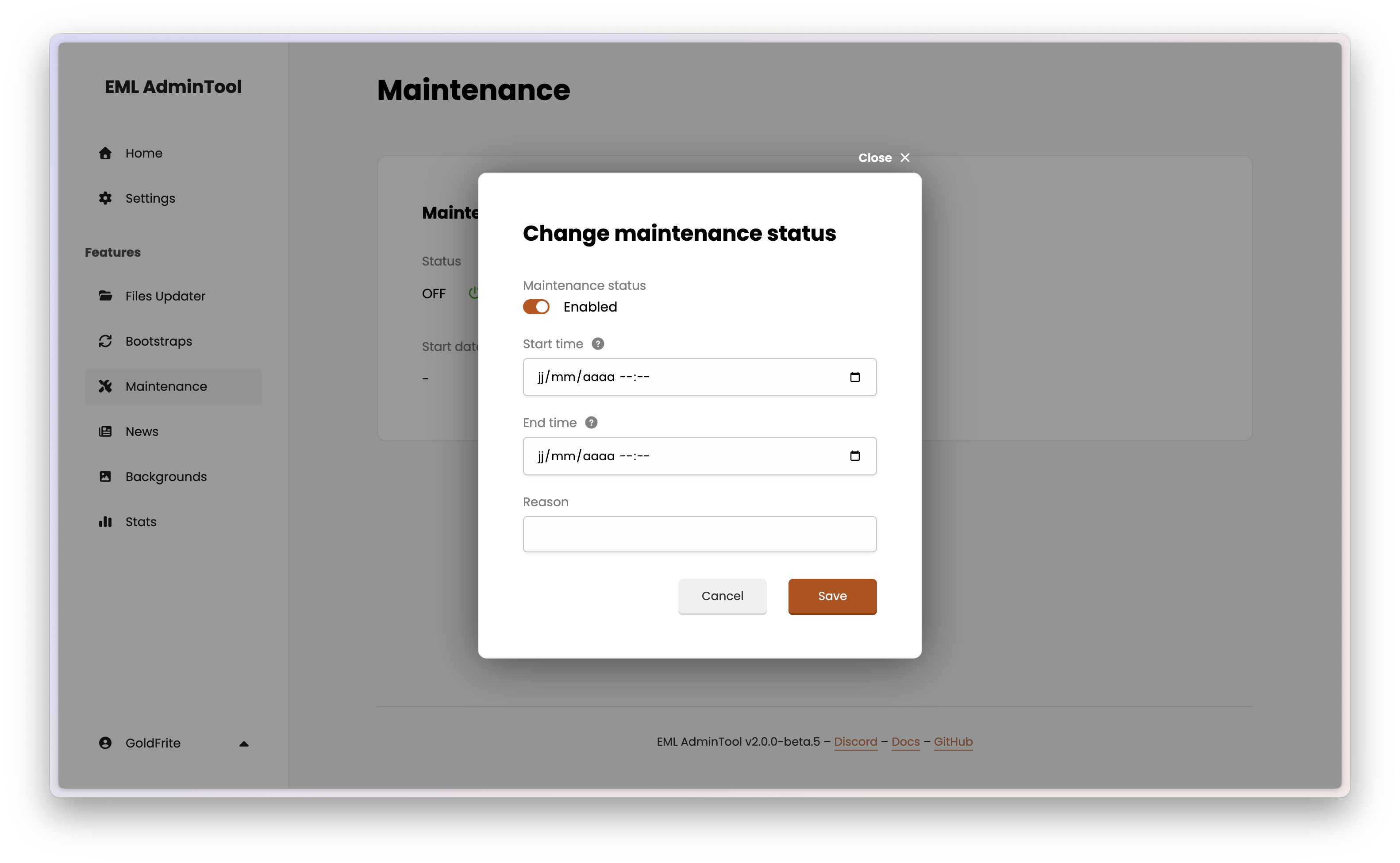
Enabling maintenance
To activate the lock, toggle the “Maintenance status” switch to “Enabled”.
Start time: Choose the date and time when the maintenance starts. The maintenance will automatically begin at that time.
Note: If you set a start time in the past, maintenance will start immediately upon saving.End time: Choose the date and time when the maintenance ends. The maintenance will not automatically lift at that time: this is just an informational field.
Note: You can not set an end time before the start time.Reason (optional): Enter a short text explaining why the server is down (e.g., “Updating modpack”, “Server Migration”, “Fixing crash”). This message is displayed directly on the launcher.
Disabling Maintenance
Once you have finished your updates, you can disable maintenance by clicking the “Turn off” button or toggling the switch to “Disabled” in the edit modal.
Best Practices
- Always turn on Maintenance before making changes in the Files Updater. This prevents players from downloading “half-uploaded” modpacks which could corrupt their installation.
- Be descriptive in the “Reason” field so players don’t panic or think their launcher is broken.