Files Updater and Loader
The Files Updater is the heart of your launcher’s content management. This is where you decide exactly what your players will download and run. It handles both game content (mods, configs, resource packs) and the game engine (loader).
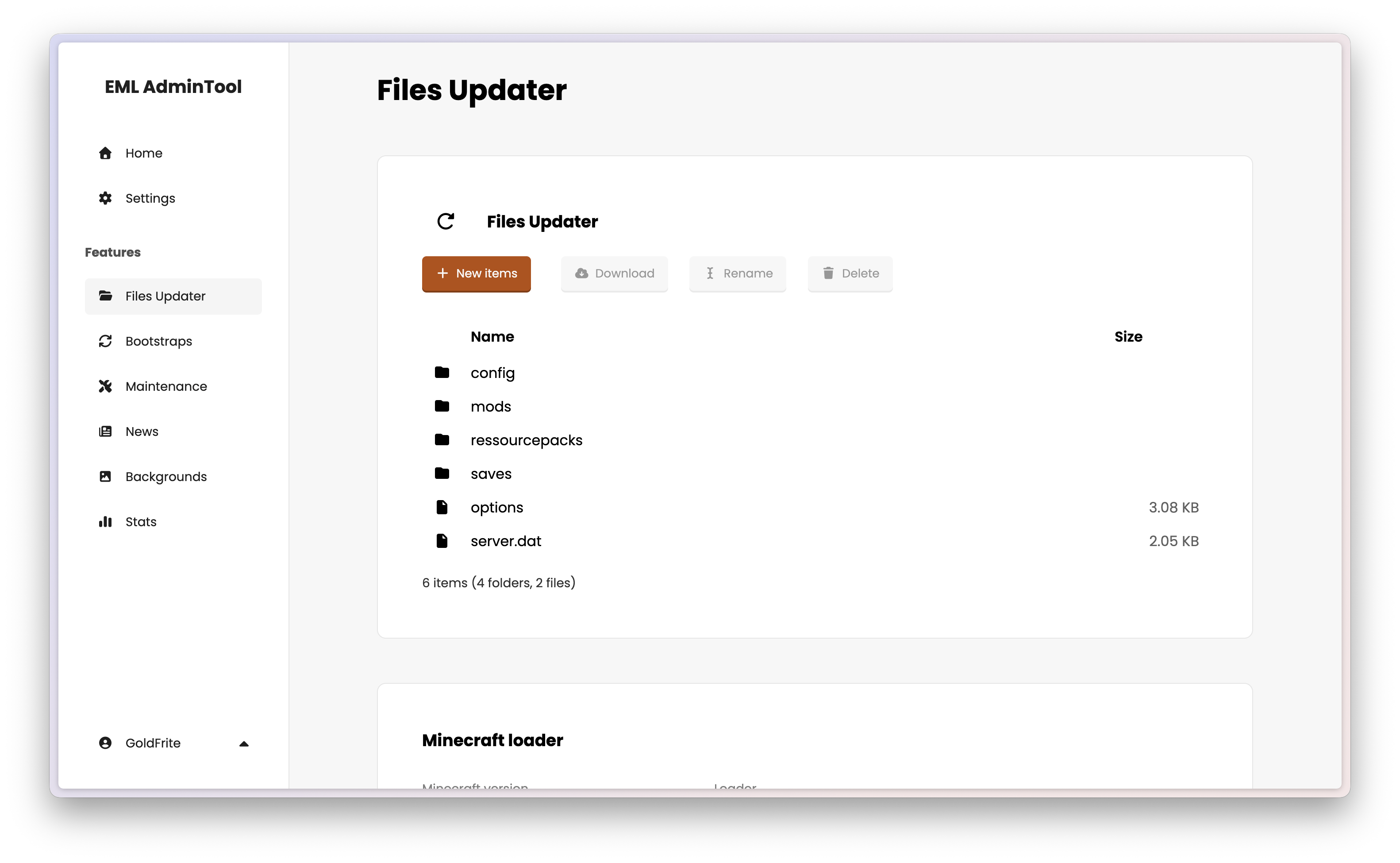
File Updater
Overview
Files Updater is like a file manager. It allows you to upload files and folders, which will then be downloaded by players’ Launchers: when you upload, modify or delete files here, the changes will be reflected on the players’ side the next time they launch or sync their game.
Note
The root folder displayed here corresponds exactly to the installation folder on the player’s computer (often .yourserver).
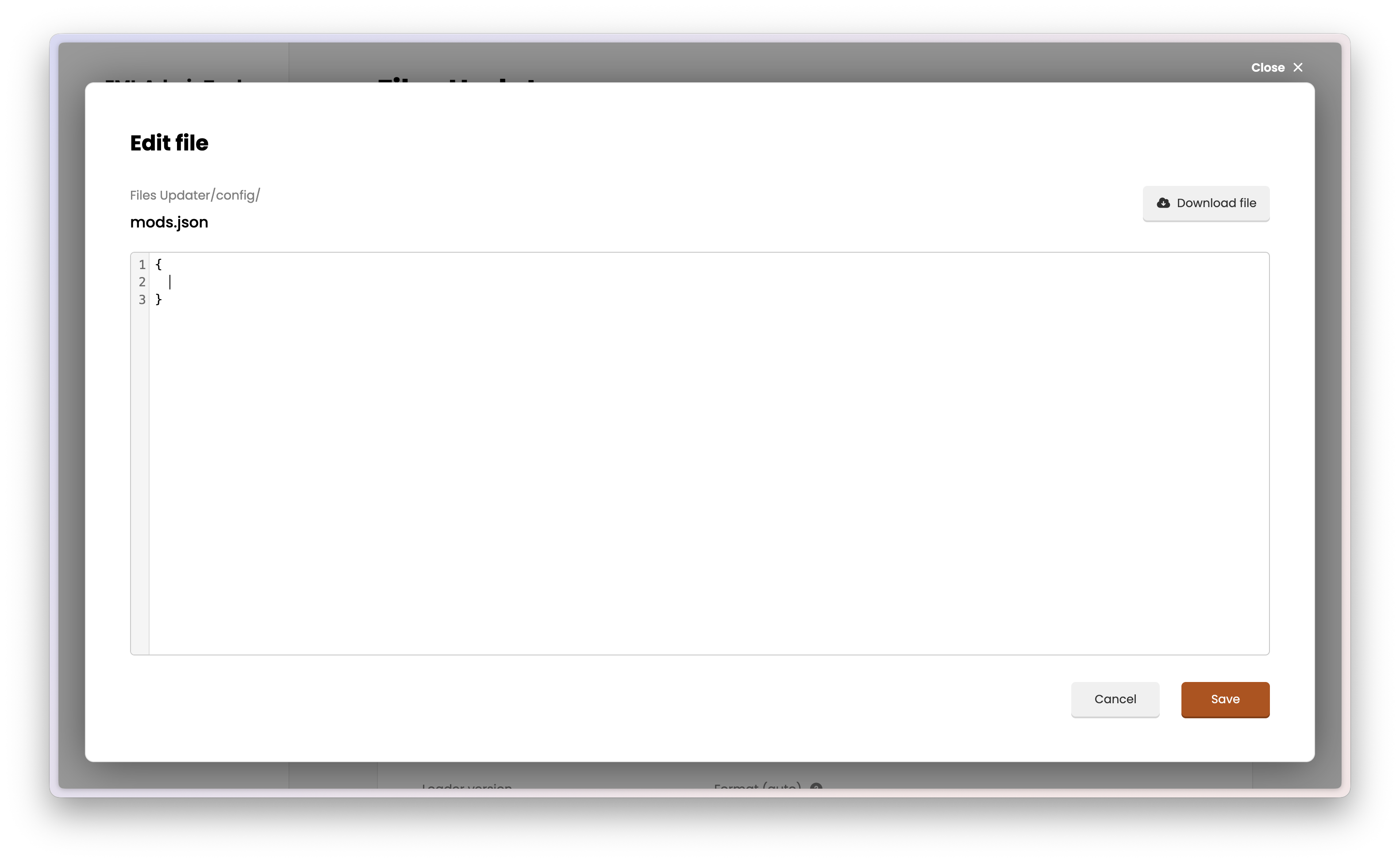
Files Updater enables you to create, upload, rename and delete files and folders. You can also edit some files directly in the browser, which is useful for small changes.
Warning
You must not upload any minecraft.jar, version.jar or version.json, neither assets or libraries folders, as this will be handled by the “Loader” feature (see below).
Tip
You can also drag and drop files directly from your computer into the file browser area to upload them instantly.
Best Practices
Recommended Structure
To ensure your modpack works correctly, follow the standard Minecraft folder structure:
/ (root)
├── mods/               <-- Put your .jar mods here
├── config/             <-- Put configuration files here
├── resourcepacks/      <-- Put .zip resource packs here
├── shaderpacks/        <-- (Optional) For shaders
└── options.txt         <-- (Optional) To force default keybinds/video settings
What NOT to upload
Avoid uploading heavy or unnecessary files that change frequently or are specific to your session:
logs/saves/(unless you want to distribute a pre-made map)screenshots/usercache.jsonorusernamecache.jsonversions/folder (just use the Loader settings instead)
Handling options.txt
If you upload an options.txt, it will overwrite the players’ settings (video settings, controls, sensitivity) every time the launcher syncs.
- Initial setup: It is good to upload it once to set default keybinds.
- Updates: Be careful not to annoy players by resetting their volume or controls constantly.
Minecraft Loader settings
After managing files, you must define how the game starts. This section, located at the bottom of the page, controls the game version and the modding engine.
To change these settings, hover over the section and click the edit button ().
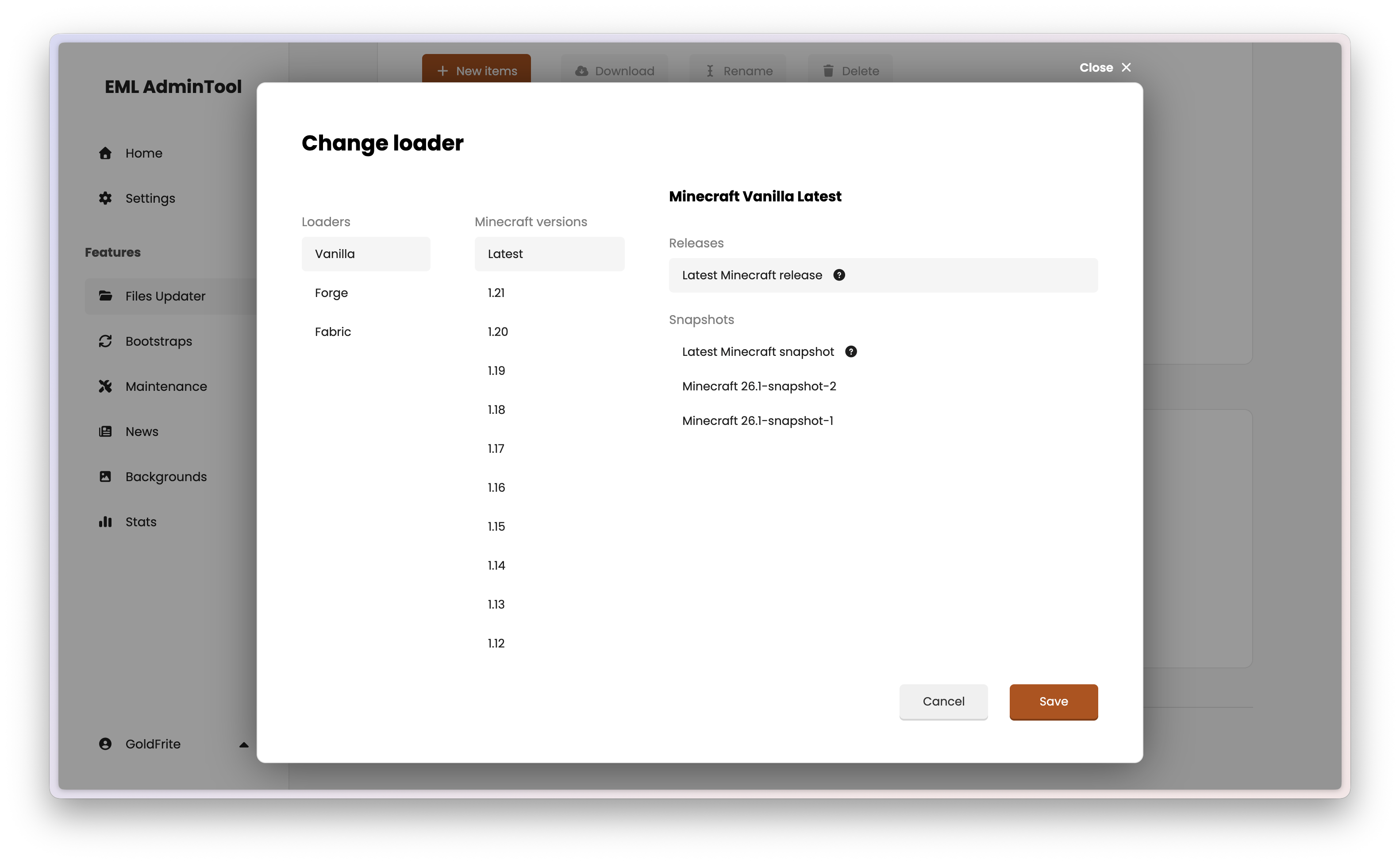
Then you can modify the following options:
- Loader: Choose the modding API you want to use:
- Vanilla: Standard Minecraft without mods.
- Forge: The classic mod loader.
- NeoForge: A modern fork of Forge.
- Fabric: A lightweight and modular mod loader.
- Quilt: A fork of Fabric with additional features.
- MCP version will be added soon.
- Minecraft version: The version of the game (e.g.,
1.20.1). - Loader version: The specific version of Vanilla/Forge/NeoForge/Fabric/Quilt to use (usually the latest stable version recommended).
Important
When you change the Loader settings and click “Save”, the EML AdminTool automatically updates the manifest. Next time players launch their game, it will automatically download the new necessary libraries (JARs) for the selected version.